Enroll COPE Android devices
Prerequisites
AMAPI enrollments
Corporate-owned, personally-enabled (COPE) device management is available for Android 11+ devices using the QR code enrollment workflow.
COPE device management lets an admin provision Android devices with company-approved permissions and restrictions, but also allows personally-enabled options for the end user. Similar to the bring-your-own-device model, COPE offers more company control when it comes to applications, integration and security, but supports the end user’s need for one-device convenience when performing non-enterprise functions.
To set up Android QR Code/COPE enrollment:
- If you want to enable or disable system apps on enrolled COPE devices, ensure the appropriate setting is configured.
- Go to the Settings tab in top navigation.
- In the left panel, navigate to KACE Cloud > Settings, and click Edit.
- In the Enrollment view, under Enable system apps on COPE enrollments:
- To enable the installation of system apps on enrolled COPE devices, ensure the Enabled check box is selected, or
- To disable the installation of system apps on enrolled COPE devices, ensure the Disabledcheck box is selected, as applicable.
- On the Settings page, click Save.
- Go to the Devices tab in top navigation.
- Click Enroll Device.
- In the Enroll Device view that appears on the right, click Device Type, and select one of the following options:
- AMAPI enrollments: Select Android Management API (QR COPE).
- Android EMM enrollments: Select Android EMM (QR COPE).
- Complete the steps for enrolling a COPE Android device associated with your enrollment path, as applicable. You can also email these instructions to the device user and have them complete the procedure.
Android Management API (QR COPE)
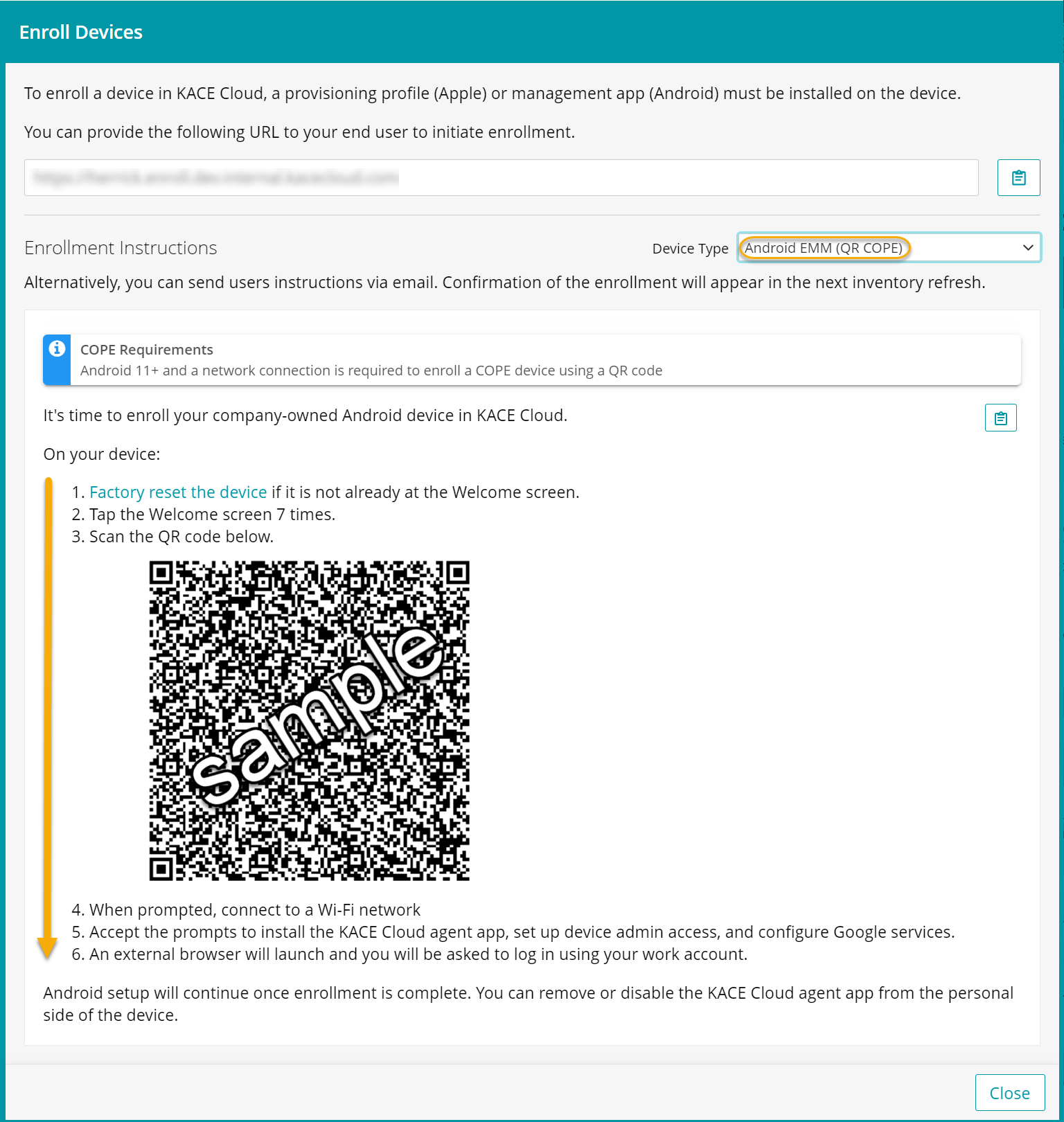
Android EMM (QR COPE)
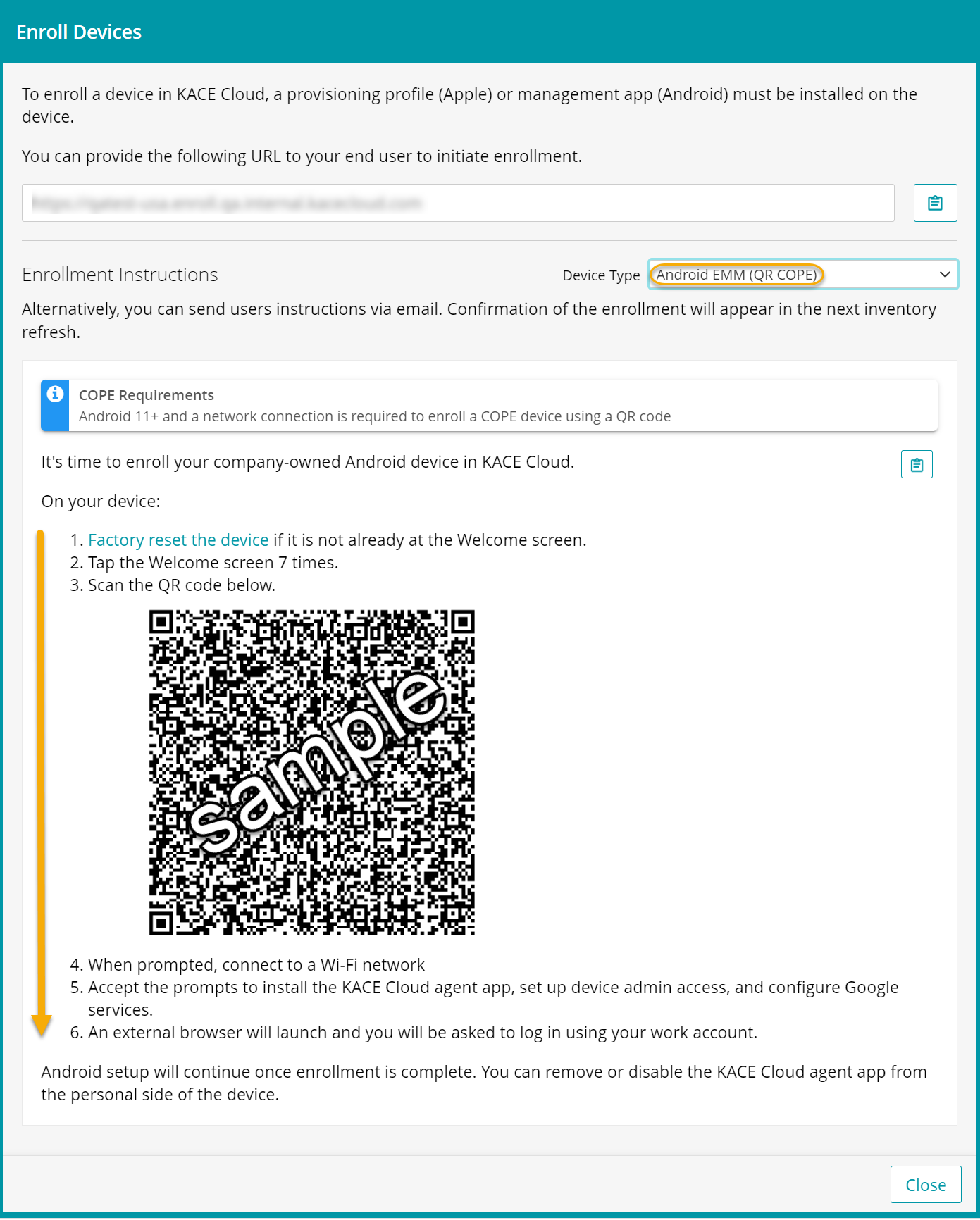
-
Locate the device in KACE Cloud.
-
Go to the Devices tab in top navigation.
An enrolled Android device is identifiable by the Android EMM
 or AMAPI
  device icon .
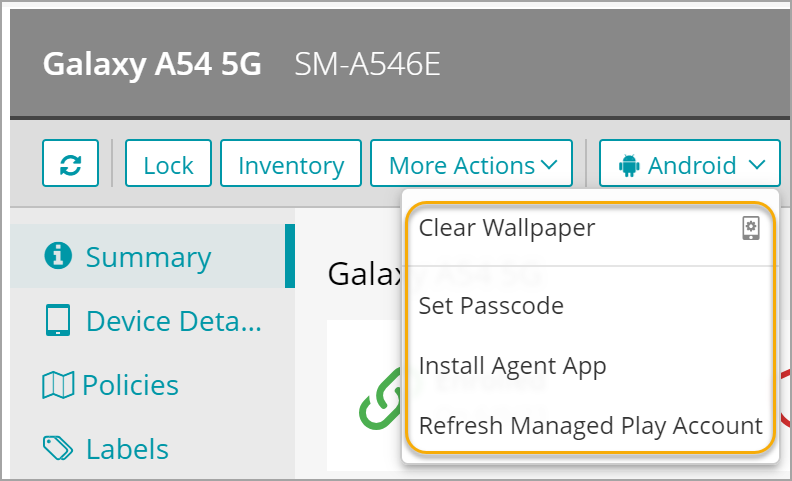
In the right panel, click Android to see all available actions for this Android device.
-